User Guide
Monora is a minimal Pomodoro timer that lives in your menu bar. It helps you efficiently manage focus and break cycles to boost your productivity.
Getting Started
Use the main panel to start, stop, and switch between timer modes.
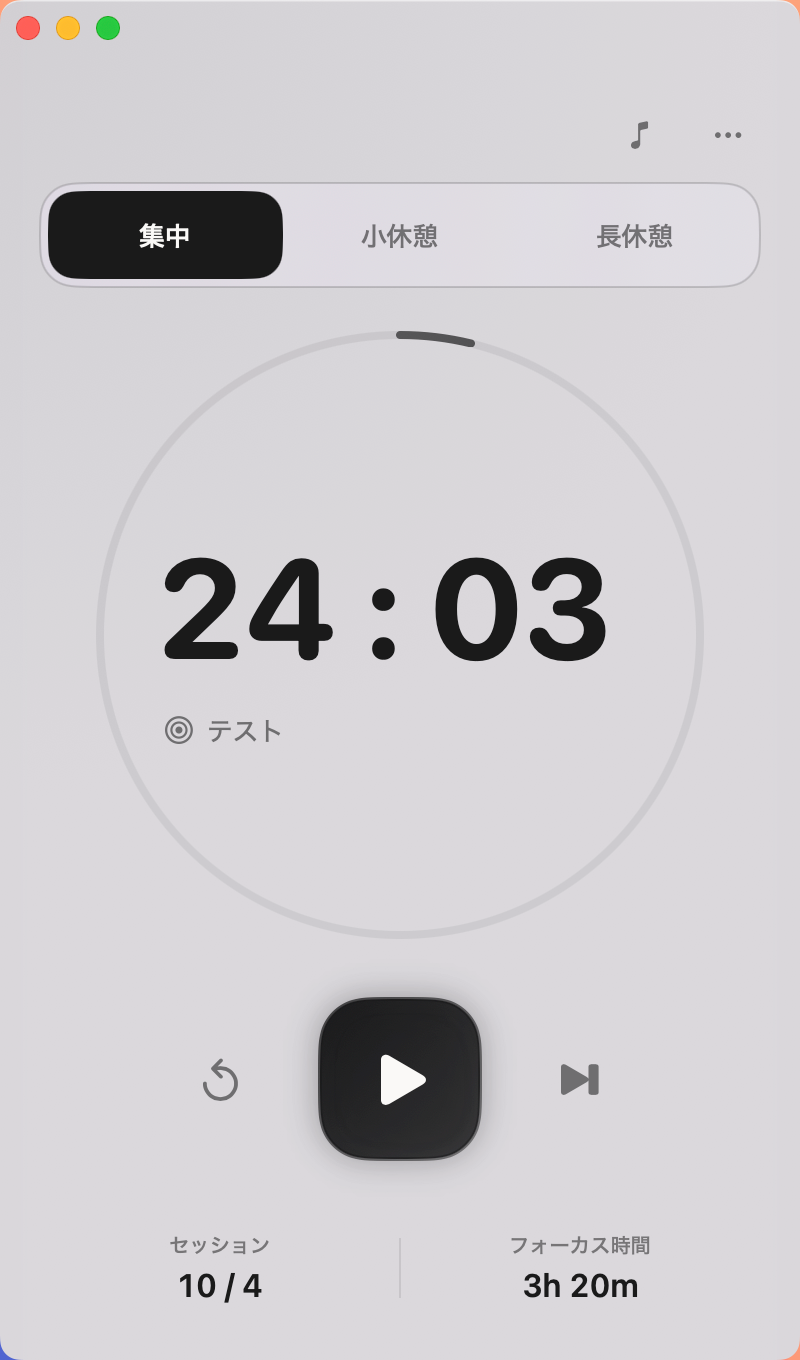
- Start / Pause: Click the play button in the center to start. It changes to a pause button while running.
- Switch sessions: Use the tabs at the top (Focus / Short Break / Long Break) to switch modes.
- Reset: Click the reverse icon on the left to reset the timer to its initial value.
- Skip: Click the forward icon on the right to skip the current session and move to the next cycle.
General Settings
Customize timers, appearance, language, and more from the "General" tab in Settings.
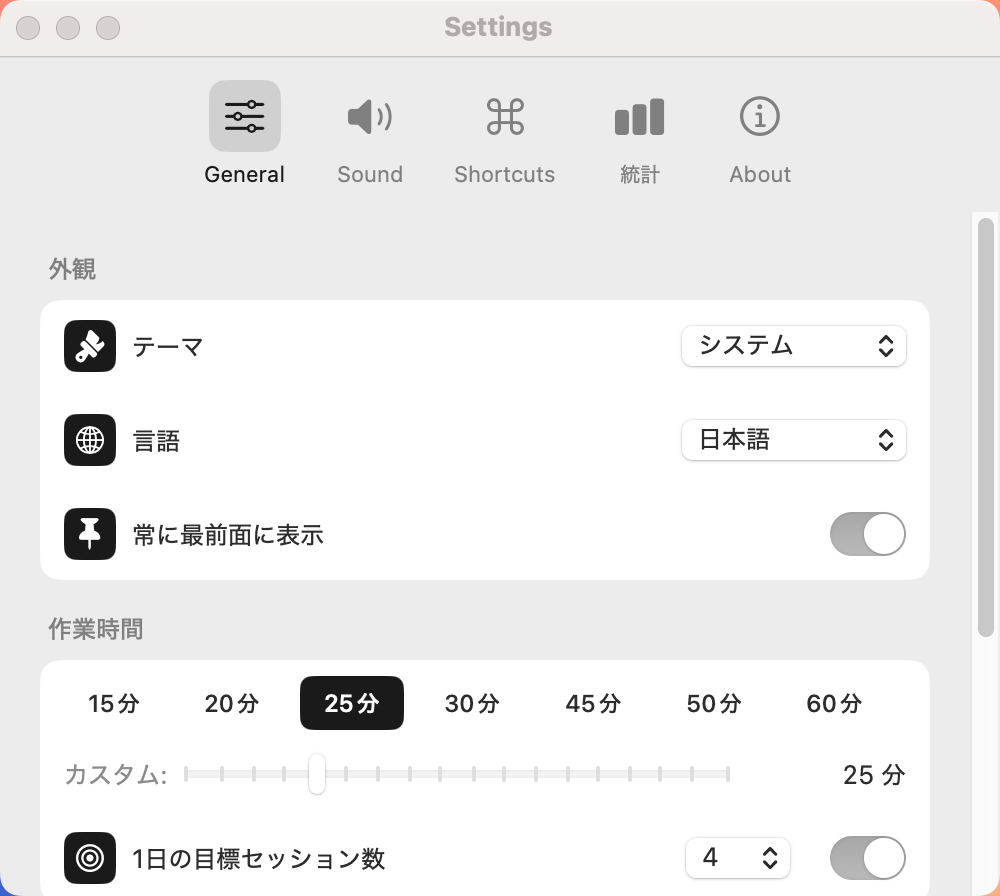
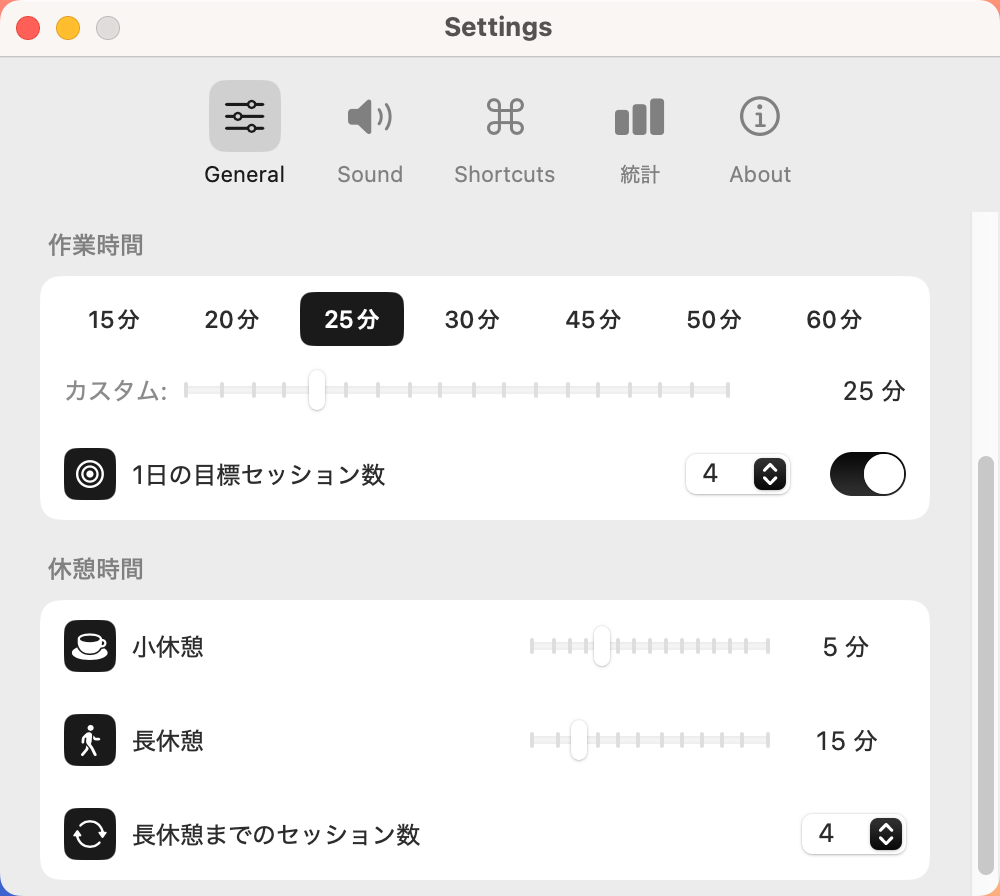
- Focus Duration: Choose from 15–60 minute presets, or set a custom time with the slider.
- Break Duration: Adjust short break and long break times independently.
- Goal Setting: Enable "Daily session goal" to easily track your progress for the day.
- Always on Top: Keep the timer visible at all times while you work.
- Theme: Follow system settings, or choose light mode or dark mode manually.
- Language: Switch between Japanese and English.
Sound & Ambient Noise
In the "Sound" tab, configure notification sounds and background sounds to help you focus.
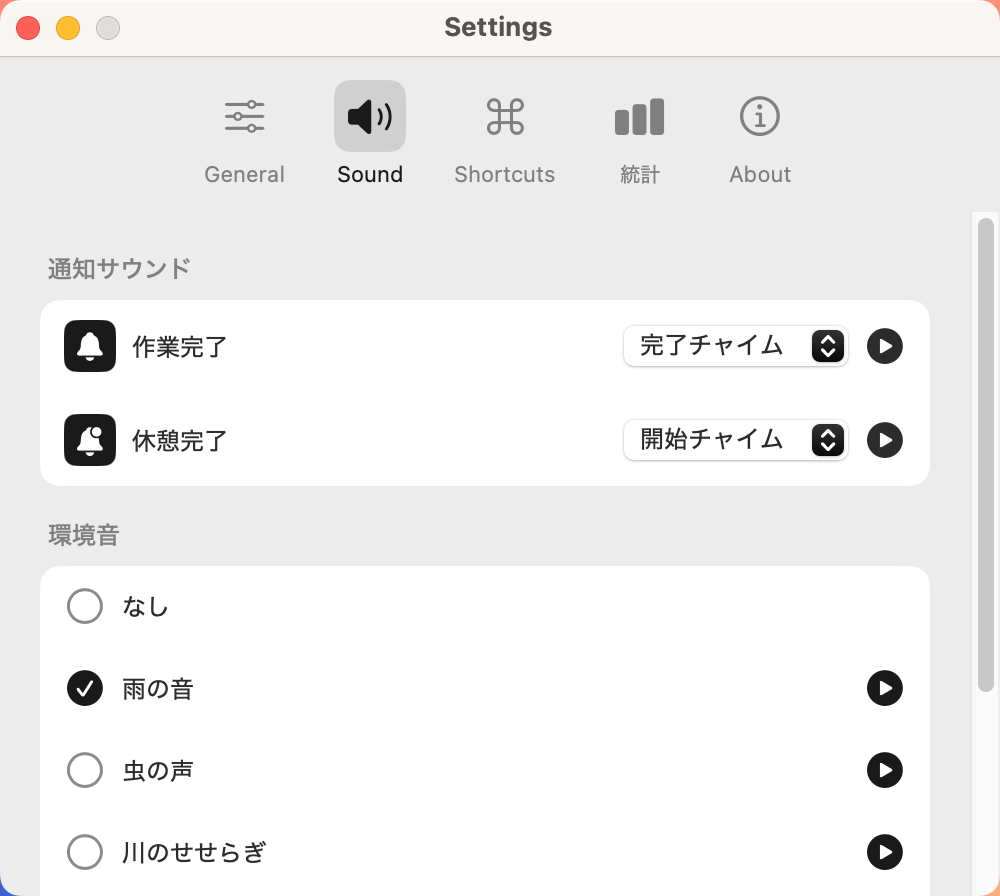
- Notification Sound: Choose alert sounds for when focus and break sessions end.
- Ambient Sound: Play white noise like rain, river, cafe chatter, city traffic, or airplane cabin to boost concentration. Preview with the play button and adjust volume with the slider.
Statistics & Data Management
The "Stats" tab lets you visualize your efforts over time.
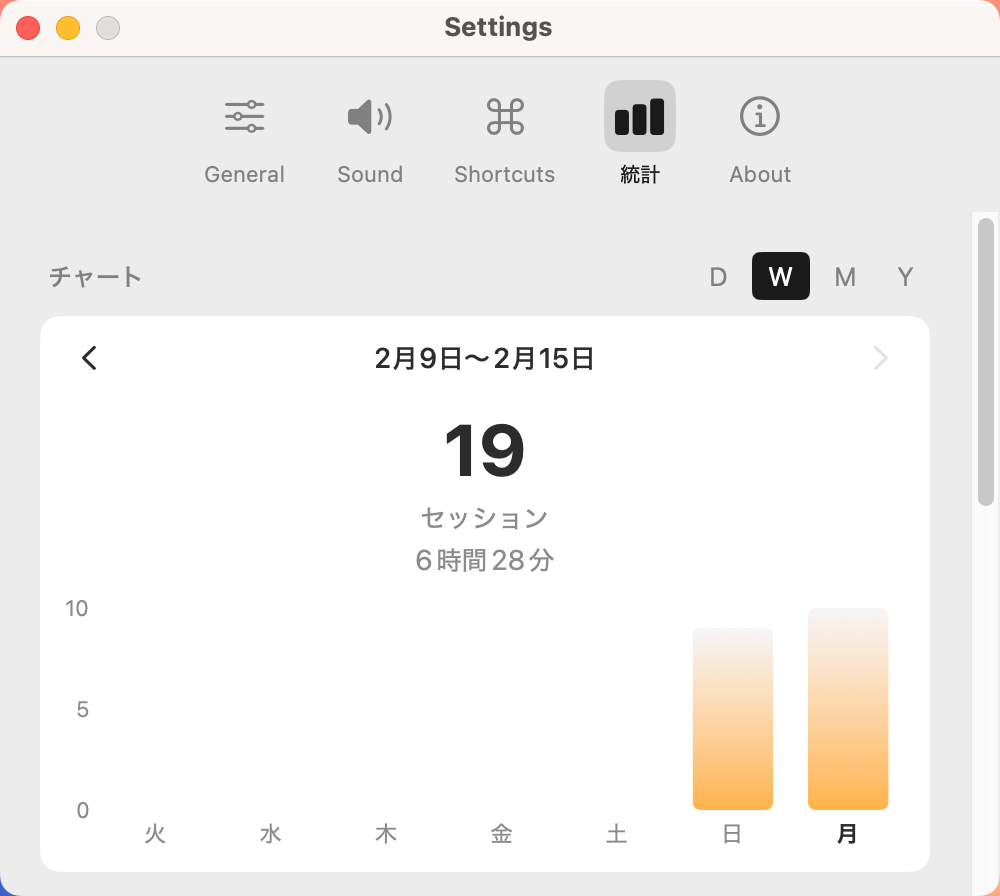
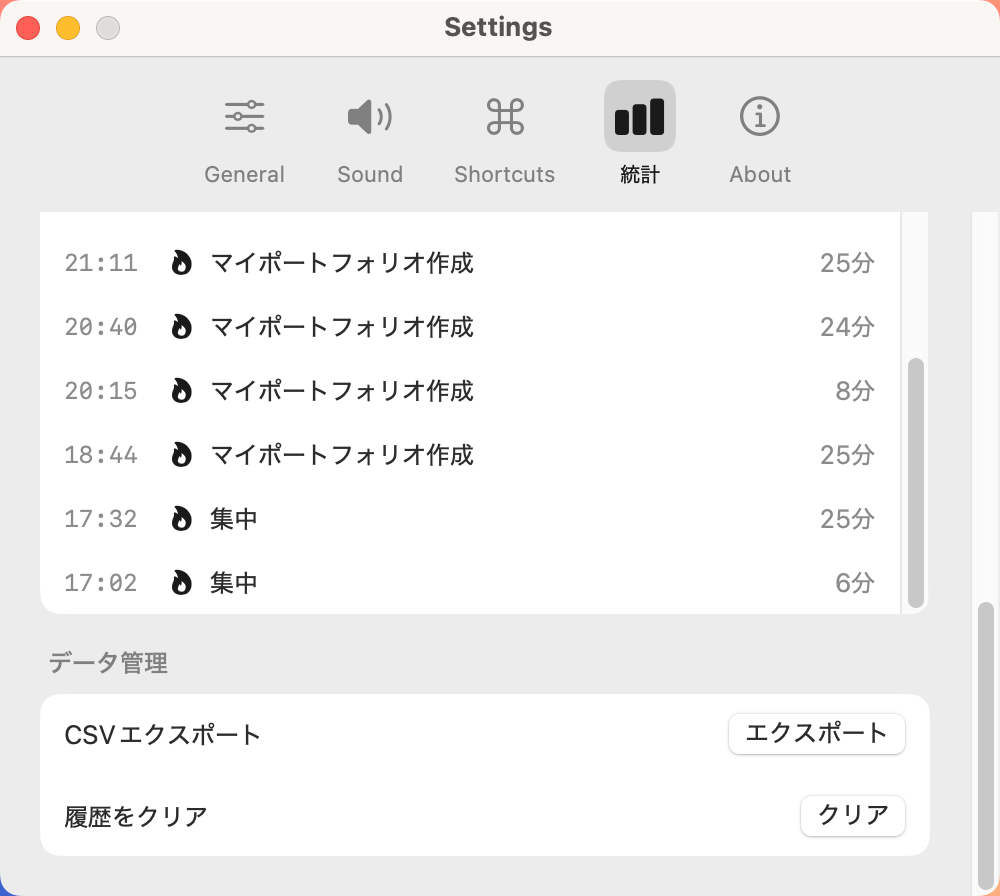
- Charts: View your focus time by day (D), week (W), month (M), or year (Y).
- History: Review past sessions with start times and durations in a list.
- Export: Use the CSV export feature to save your data as an external file.
- Clear History: Reset all records when needed.
Keyboard Shortcuts
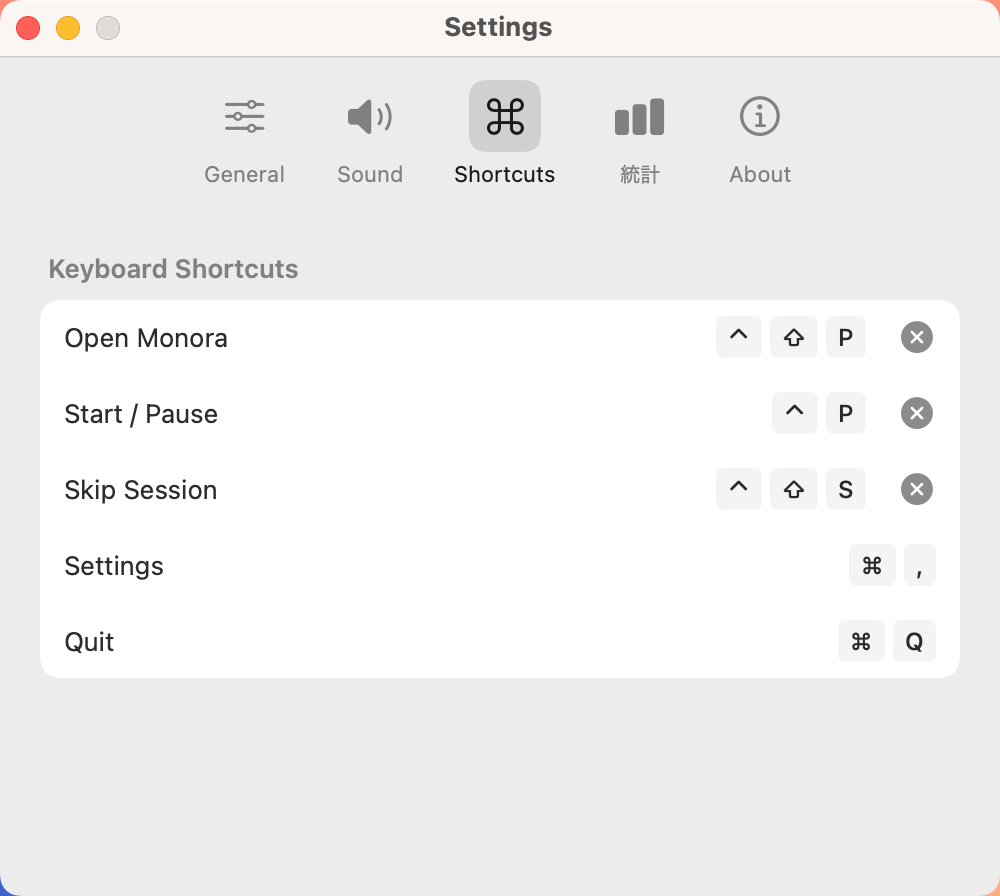
In the "Shortcuts" tab, you can configure keyboard shortcuts to quickly control the app. Assign keys for launching the app, starting/stopping the timer, and more (default: Ctrl + Option + P, etc.).
Tips
At the bottom of the main panel, you can see your current session count / goal and today's total focus time in real time, so you can instantly check your daily progress.